Receptors
The Receptors catalog lists the protein structures in the active project. Select Import Receptors... in that catalog, or choose File → Import Receptors..., to open the receptor import panel. This guide describes the panel’s input actions, per-structure review table and import options.
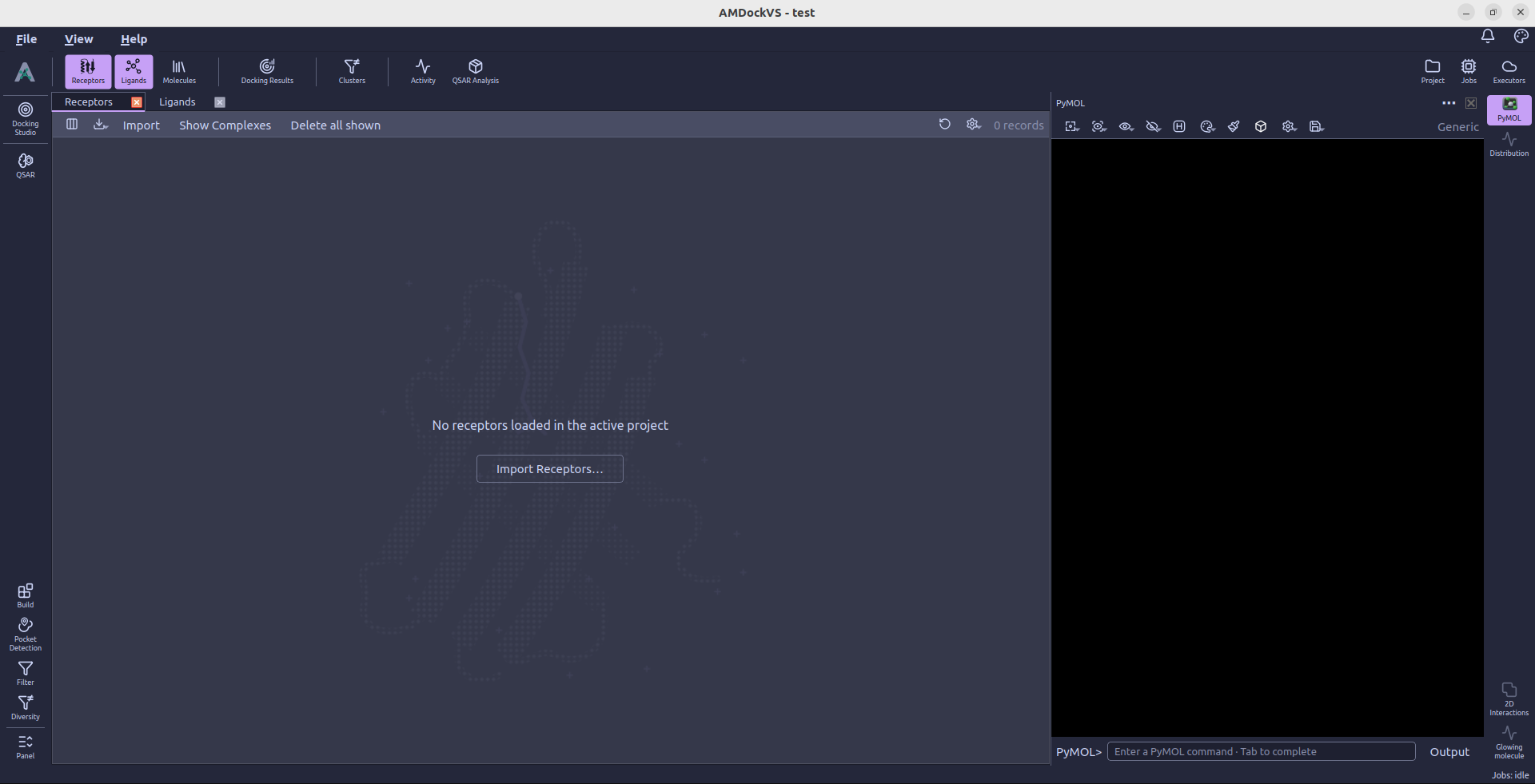
Add receptor structures
The toolbar beside the table provides these actions:
- Add files — Choose one or more receptor structure files.
- Add folder — Add supported files from a folder and its subfolders.
- Add sequence — Paste FASTA or a bare amino-acid sequence. Use
:to separate chains. Each FASTA record becomes a sequence input; it has no 3D coordinates until a structure is generated. - Download — Fetch structures or sequences by identifier from RCSB PDB (mmCIF), AlphaFold DB, ESM Metagenomic Atlas or UniProt. The dialog accepts PDB IDs, UniProt accessions or MGnify protein IDs, depending on the source.
- Remove — Remove selected rows from the pending import list. This does not remove receptors already imported into the project.
You can also drop receptor files into the table. While the preview scan is running, the add and remove controls are disabled. Structural preview is available for PDB, mmCIF and PDBQT files. FASTA files can also be selected as sequence inputs; they have no 3D coordinates until a structure is generated.
For downloaded files, Keep the downloaded files reuses them on a later import. Otherwise, files are temporary and are deleted after the import job finishes. The keep option is available when a project is open; temporary files for that project can be reviewed in Settings → Downloads.
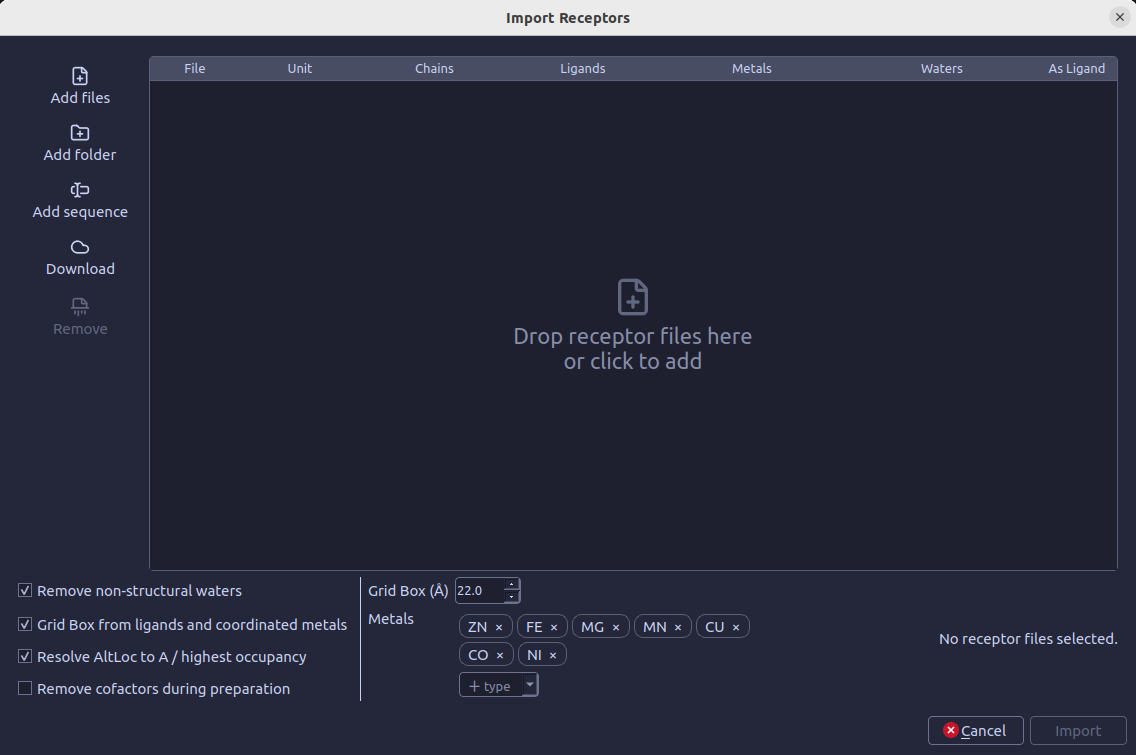
Review each structure
After adding files, the panel scans them and shows one row per structure. The preview table lets you make selections separately for each file:
| Column | What it controls |
|---|---|
| File | The selected file name. Downloaded files can be marked temporary. |
| Unit | Choose the asymmetric unit or one of the biological assemblies found in the structure. |
| Chains | Choose which chains to keep from the selected unit. By default, all available chains are kept. |
| Ligands | Choose co-crystal ligands to retain as reference ligands. With no narrower selection, all detected candidates are retained. |
| Metals | Choose which detected metal components to keep in the receptor. |
| Cofactors | Choose which detected cofactors (FMN, FAD, NAD, HEM, ...) to keep in the receptor. By default, all are kept; remove one to strip it from the stored structure. Whether the kept cofactors are included when the receptor is prepared for docking is set by Include cofactors in Docking Studio. |
| Waters | Choose structural waters to retain. Non-structural waters are controlled by the global option below. |
| As Ligand | Also import this receptor as a general ligand, for cases such as docking a protein dimer. |
Changing the unit or selected chains updates the available ligand, metal, cofactor and water choices to match the parts of the structure that remain in scope.
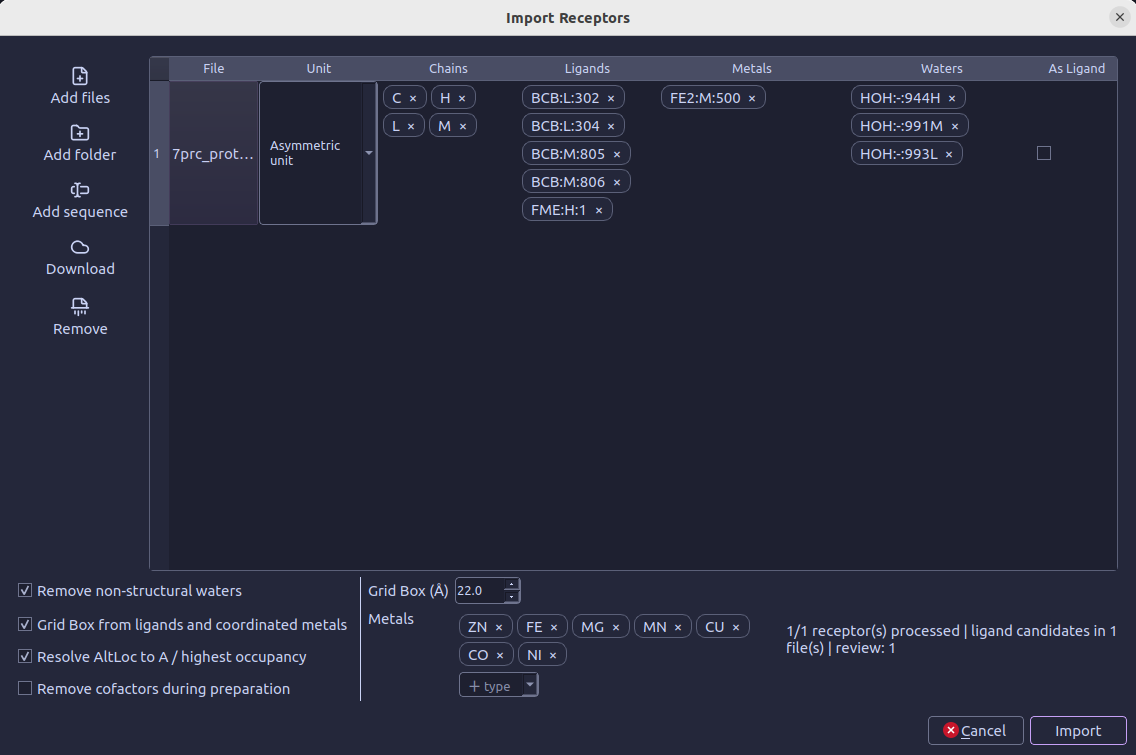
Set import options
The controls below the table apply to the import:
- Remove non-structural waters — Checked by default. Removes waters not classified as structural; structural waters are selected per file in the Waters column.
- Grid Box from ligands and coordinated metals — Checked by default. Creates binding-site boxes from the selected co-crystal reference ligands and configured coordinated metals. Turn it off to skip creating boxes during import.
- Grid Box (Å) — Set the side length of boxes created from the selected ligands or metals. The control accepts 8-40 Å in 1 Å steps; its initial value comes from the docking box-size setting.
- Metals — Select, add or reorder the coordinated metal types that can define grid-box centers. This global list is separate from the per-file Metals column, which controls whether detected metal components are retained in the receptor.
- Resolve AltLoc to A / highest occupancy — Checked by default. Resolves alternate atom locations by preferring location A, or the highest occupancy when A is unavailable.
Start the import
Wait for the preview scan to finish, review the selections and options, then select Import. The button becomes available after at least one file has been added and any required preview scan is complete. For files within the preview limit, the scan progress appears in the dialog footer. After submission, follow the import job in the Jobs monitor; the Receptors catalog opens as the job is queued.
For batches larger than 50 files, per-file preview is disabled. The table then shows file format and path instead of the per-structure selection columns, and the import job handles the files without preview-derived binding-site boxes. Cofactors are kept in every structure; leave Include cofactors off in Docking Studio to dock without them.