PyMOL
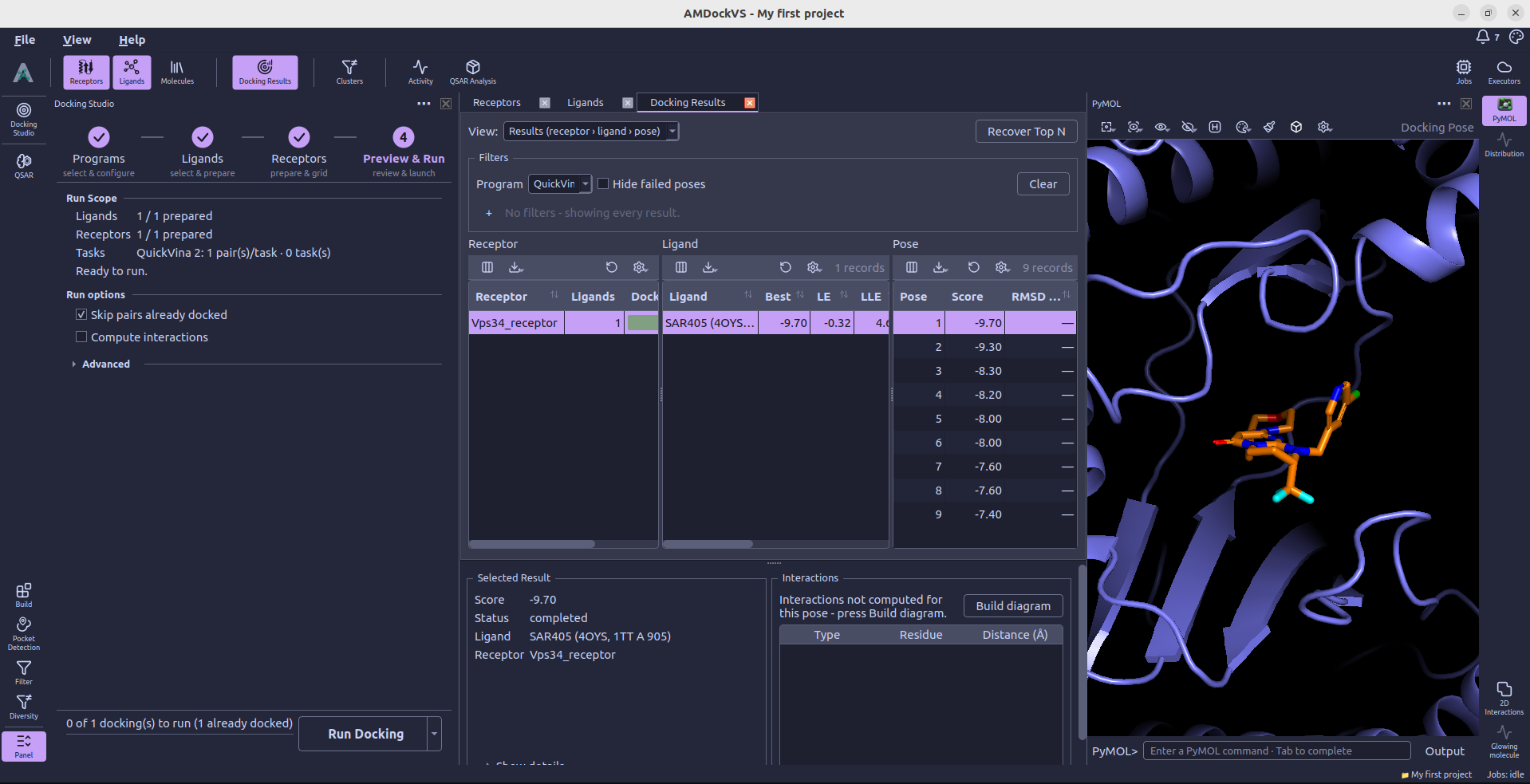
PyMOL is the embedded 3D viewer on the right side of the workspace. It shows receptor structures, ligands, docking poses, and binding-site boxes. Open it from the right tool rail, then select a molecule or docking pose in the central catalog to inspect it.
1. Choose what to display
The viewer follows the structure selected in the active catalog or result view. Select a receptor to inspect its structure and active binding site, a ligand to inspect that molecule, or a pose in Docking Results to see the receptor–ligand complex.
In Pocket Detection, selecting predicted sites displays their pocket points and centers on the receptor. The available display presets change with the kind of scene being shown.
PyMOL displays the coordinates stored for the selected molecule. To generate a 3D structure or change its preparation, use Build or Docking Studio.
For an ESMFold prediction, open the bottom Panel and choose Color by pLDDT. The prediction and confidence data remain saved when you reopen the project. After structure preparation, Color prediction by pLDDT displays the saved prediction with its original confidence values; Show Current returns to the prepared working structure.
2. Use the viewer toolbar
The toolbar provides the following actions. In a narrow panel, some actions move into its overflow menu.
- Selection — Choose whether mouse picks select atoms, residues, chains, or objects. The menu also clears the PyMOL selection.
- Actions — Use Zoom, Orient, or Center on the current PyMOL selection or scene target.
- Display — Apply Cartoon, Sticks, Lines, Surface, Spheres, Ribbon, or Dots. In comparison scenes, the menu also offers Grid and Overlay layouts.
- Hide — Hide a representation or everything for the current selection or scene target.
- Hydrogens — Show polar hydrogens (bonded to N, O, or S) by default. Click to cycle through hidden, all, and polar hydrogens in the PyMOL session.
- Presets — Apply a display preset compatible with the current scene.
The atom or residue selection made inside PyMOL controls viewer actions. The global molecule selection used by Build and Docking Studio is made separately in the catalog tables.
3. Choose a display preset
AMDockVS adds presets for the main kinds of scene:
- AMDock · Receptor shows the receptor as a cartoon with atom coloring based on its role.
- AMDock · Ligand centers the ligand and shows it as sticks.
- AMDock · Protein-ligand shows the protein as a cartoon and the ligand or docking pose as sticks.
- Binding sites · Points, Binding sites · Residues, and Binding sites · Surface show different views of a predicted pocket.
- Surface · Site highlight and Surface · Residue nature show the search-space region on a receptor surface, using either a highlight color or residue chemical properties.
The menu only offers presets that apply to the current scene. Select a predicted pocket first to use its binding-site presets.
4. Inspect the search space
Grid Box opens the side panel beside the 3D canvas. Select a receptor to review its sites and the center and dimensions of its working box. The panel's save and activation actions control which site is used for docking.
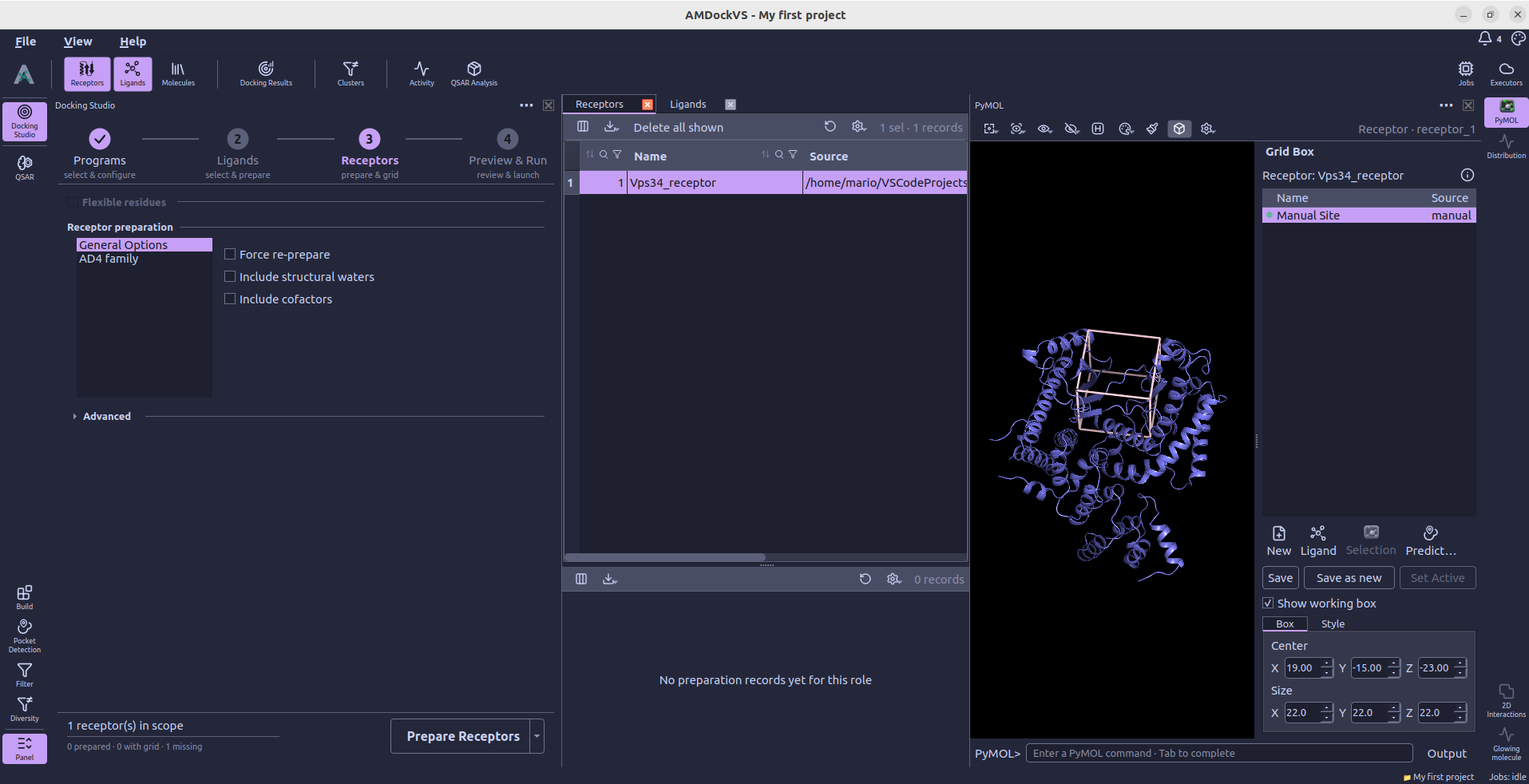
Use Pocket Detection to predict candidate sites, or review the receptor's active box during the Receptors step of Docking Studio.
5. Adjust the scene and export
Scene provides additional scene, camera, and rendering options. Color by Role distinguishes receptor and ligand atoms while keeping heteroatoms colored by element. Clear Scene removes the displayed objects from PyMOL; it does not delete their project records. The command line beneath the canvas accepts PyMOL commands for further adjustments.
Export offers Save displayed complex as PDB... and Save ray-traced PNG.... The image export uses a print-sized rendering at 300 dpi.
For a complementary view of the selected pose's contacts, open 2D Interactions.