Ligands
The Ligands catalog contains molecules imported into the active project. Choose Import Ligands... in the catalog, or use File → Import Ligands..., to open the import panel. From there, add files or download compounds, set a molecule type for each file, and choose whether small molecules should be stored as project rows or kept as a screening library on disk.
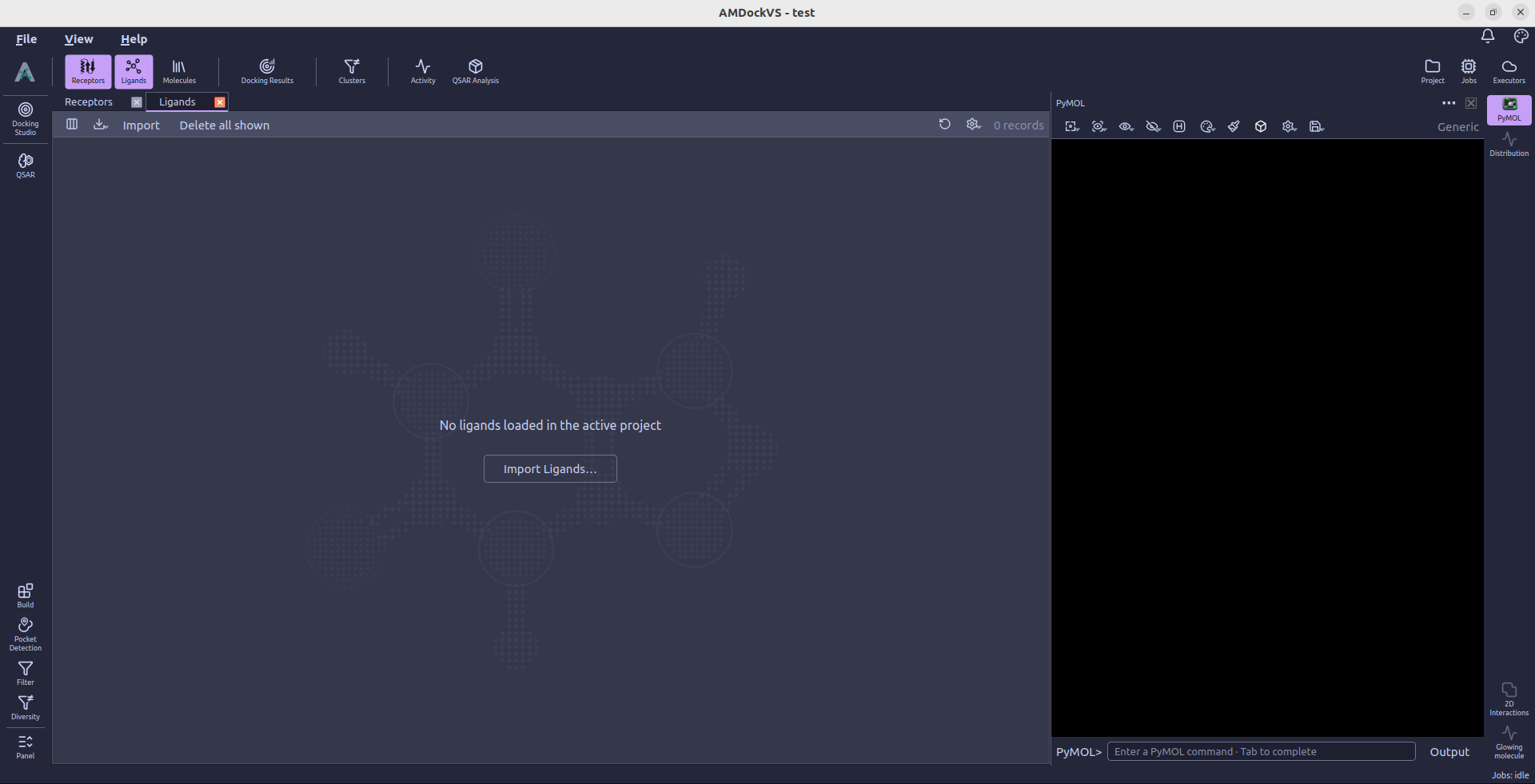
Add ligand files
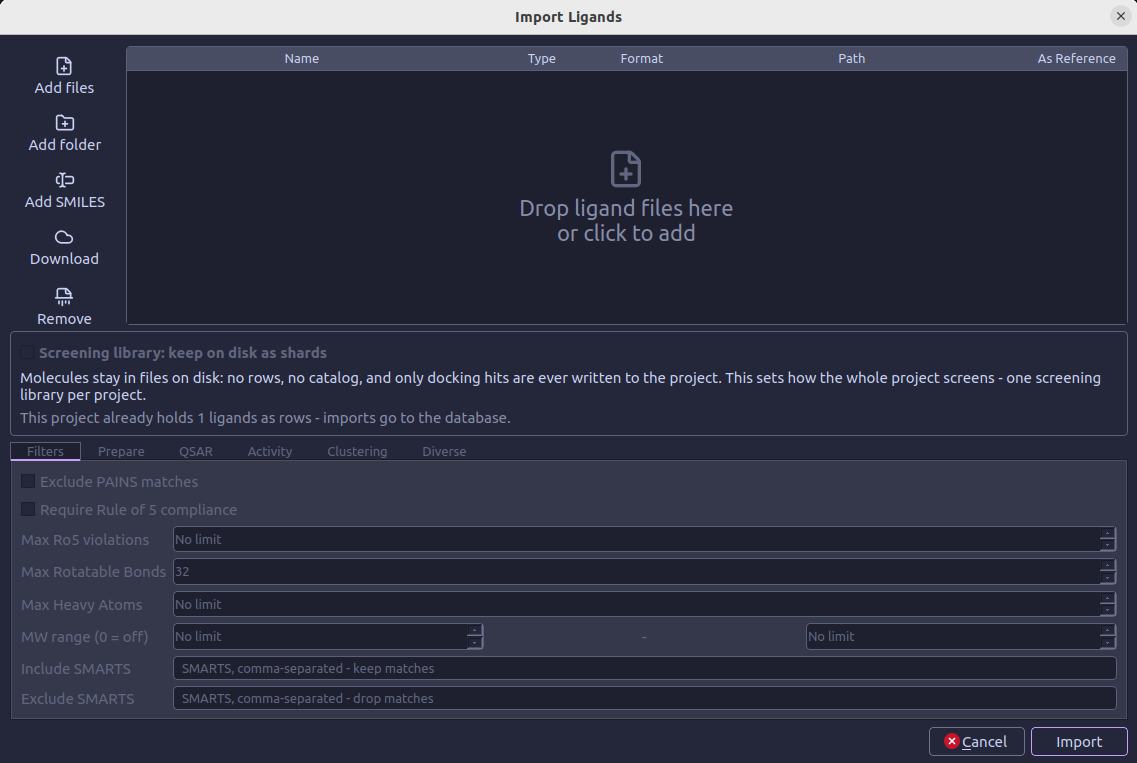
Use the toolbar beside the table to add inputs:
- Add files — Select one or more molecule files. Supported inputs include SDF/SD, MOL/MDL, MOL2, PDB, PDBQT, CIF/mmCIF, SMILES, CSV/TSV/text tables, and FASTA files.
- Add folder — Add supported files from a folder and its subfolders.
- Add SMILES — Paste one SMILES per line, optionally followed by a molecule name. AMDockVS saves the input as a temporary
.smifile for import. - Download — Retrieve compounds from PubChem by CID or name, ChEMBL by compound ID, the ChEMBL approved-drug collection, the latest eMolecules free catalog, or URLs such as ZINC22 tranche and vendor files.
- Remove — Remove selected files from this pending import.
You can also drag files or folders onto the table. Duplicate paths are added only once. Downloaded files can be kept for reuse on a later import; temporary downloads are removed after import, and project downloads can be reviewed in Settings → Downloads.
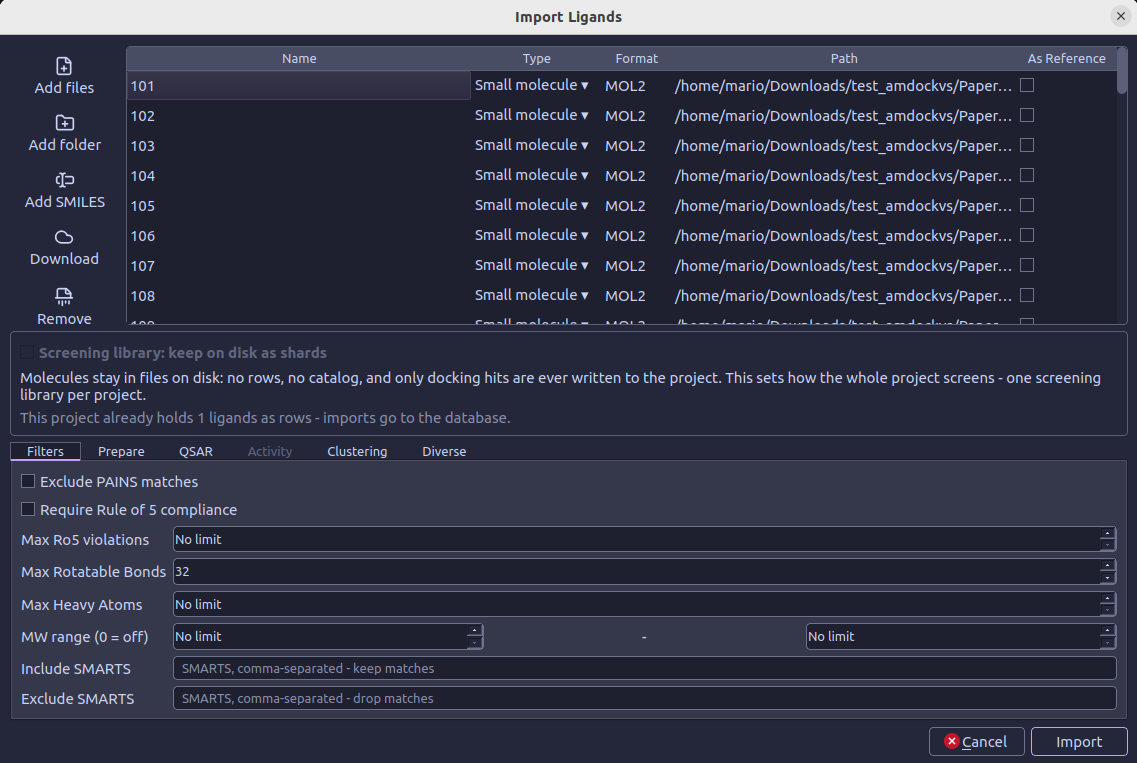
Review the input table
The table has one row per input file:
| Column | What it controls |
|---|---|
| Name | The displayed file or downloaded compound-set name. |
| Type | Choose Small molecule, Protein, Peptide, Nucleotide, or Polymer. New rows default to Small molecule. |
| Format | The file extension detected for the input. |
| Path | The source file location. |
| As Reference | Mark curated ligands, such as co-crystals or measured actives, as references. Reference files are imported as project rows and are not placed in screening shards. The Activity tab reads measurements only from files marked this way. |
Click a Type cell to select its molecule type. Click anywhere in an As Reference cell to toggle that mark.
Choose where a screening library goes
The Screening library: keep on disk as shards option is for large small-molecule collections. When enabled, molecules remain in files on disk instead of becoming one database row per molecule; docking hits are written to the project. Reference files and non-small-molecule types still import as rows. AMDockVS suggests sharding when the queued small-molecule count reaches its configured threshold.
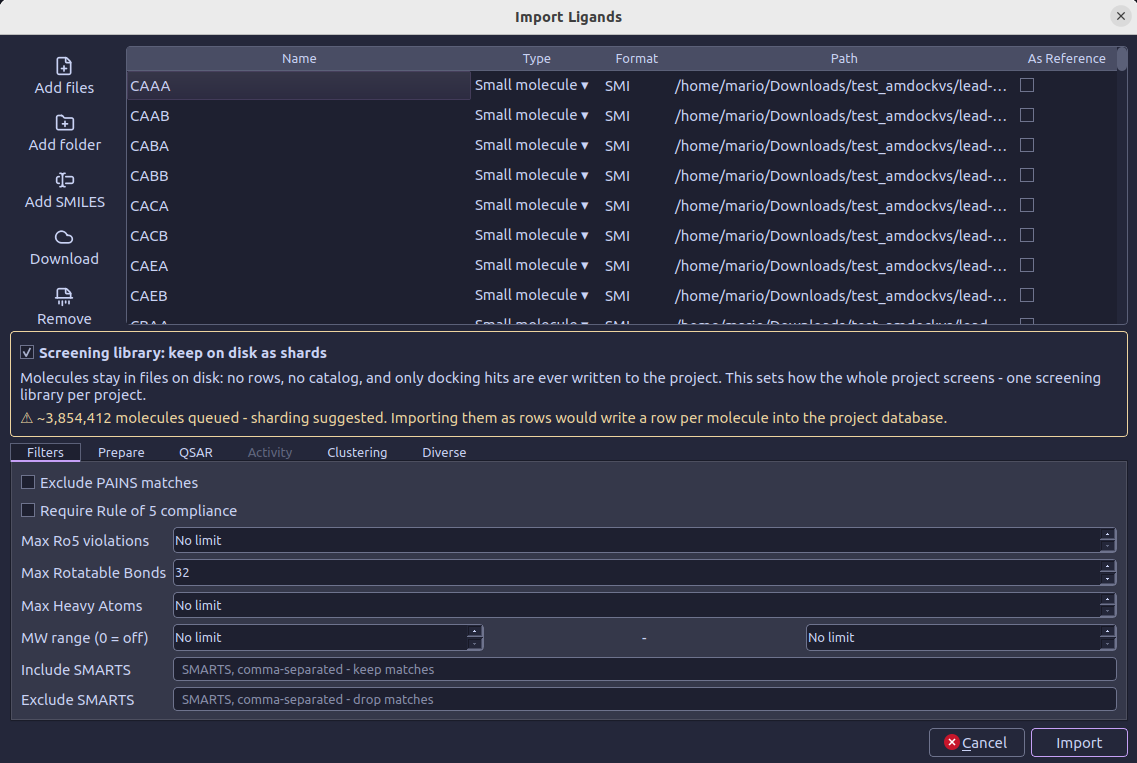
A project can have one screening library. If a project already has ligand rows, new imports go to the project database. If it already has a sharded library, the option stays selected for additional screening files. Turn it off for a row-based import, and mark curated files As Reference to put them in the reference context.
Set import options
The tabs below the table apply to small-molecule inputs. They become available when at least one file is assigned the Small molecule type.
Filters
All filters are optional and are off unless stated otherwise. The Max
Rotatable Bonds field starts at 32; 0 means no limit. The other numeric
limits use 0 for no limit.
- Exclude PAINS matches — Remove molecules matching PAINS substructure patterns.
- Require Rule of 5 compliance — Keep molecules with no more than the selected maximum number of Lipinski Rule of 5 violations. The default is no maximum.
- Max Rotatable Bonds — Set the upper limit on rotatable bonds.
- Max Heavy Atoms — Set the upper limit on heavy atoms.
- MW range — Set a lower and/or upper molecular-weight bound.
- Include SMARTS — Keep molecules matching every comma-separated SMARTS pattern.
- Exclude SMARTS — Remove molecules matching any comma-separated SMARTS pattern.
Prepare
Each preparation option is off by default and runs only when the corresponding feature is missing:
- Add hydrogens (if missing) — Add explicit hydrogens when absent.
- Generate 3D coordinates (if missing) — Generate a 3D conformer using ETKDG; this also adds hydrogens and can take time for very large libraries.
- Standardize to canonical tautomer — Select one canonical tautomer per molecule. This does not enumerate tautomers as separate molecules.
- Split fragments into separate molecules — Keep the largest organic fragment as the main molecule and import other distinct organic fragments as separate molecules; duplicate fragments and ions are skipped.
QSAR, Clustering and Diverse
These tabs are placeholders in the import panel. QSAR model filtering is not available during import. Clustering and diversity selection run after import; use Molecule Tools → Diversity for those operations.
Activity
The Activity tab is enabled only when at least one input is marked As Reference. Enter an SDF property tag or table column under Activity from file tag/column. The optional endpoint name defaults to that tag; the unit can be selected or entered, and the transform can be left as (none) or set to pIC50, pKi, or pEC50.
For a reference CSV, TSV, text, or SMILES table, the panel detects numeric columns and offers them as checkboxes. Select the columns to import as activity endpoints. Columns containing only 0 and 1 are identified as categorical; other numeric columns are identified as continuous. Detected columns are not selected automatically.
Start the import
Add at least one file, review its type and reference status, and select Import. The options in the tabs apply to small-molecule files; other types are imported using their selected type. Reference small molecules are loaded as project rows, while non-reference small molecules can be sent to the screening shards when that option is selected. Follow the submitted work in the Jobs monitor; AMDockVS opens the Ligands catalog or the Shards view based on where the imported molecules are stored.