Build
Build prepares small molecules and proteins already imported into the project. Open it from the left tool rail, choose a molecule type, and enable the operations you want to run. The central Molecules table shows the scope being prepared; table filters and the global ligand or receptor selection narrow that scope.
Use Build to change molecular structures before docking or other analyses. Program-specific docking preparation is configured separately in Docking Studio.
1. Choose the molecules
Select Small molecules or Proteins. The Molecules table switches to that type, and the action bar summarizes the number of molecules in scope. Review that count before starting a run.
For a project with a screening library, Ligands from lets you choose project rows, screening shards, or both. Conformer ensembles apply to project rows; they are not generated for molecules kept in shards.
2. Prepare small molecules
Tick the sections to include in the build. Enabled operations run in this order: protonation, 3D generation, conformer generation, then minimization. Minimization is displayed before the conformer controls in the panel, but runs after conformer generation when both are enabled.
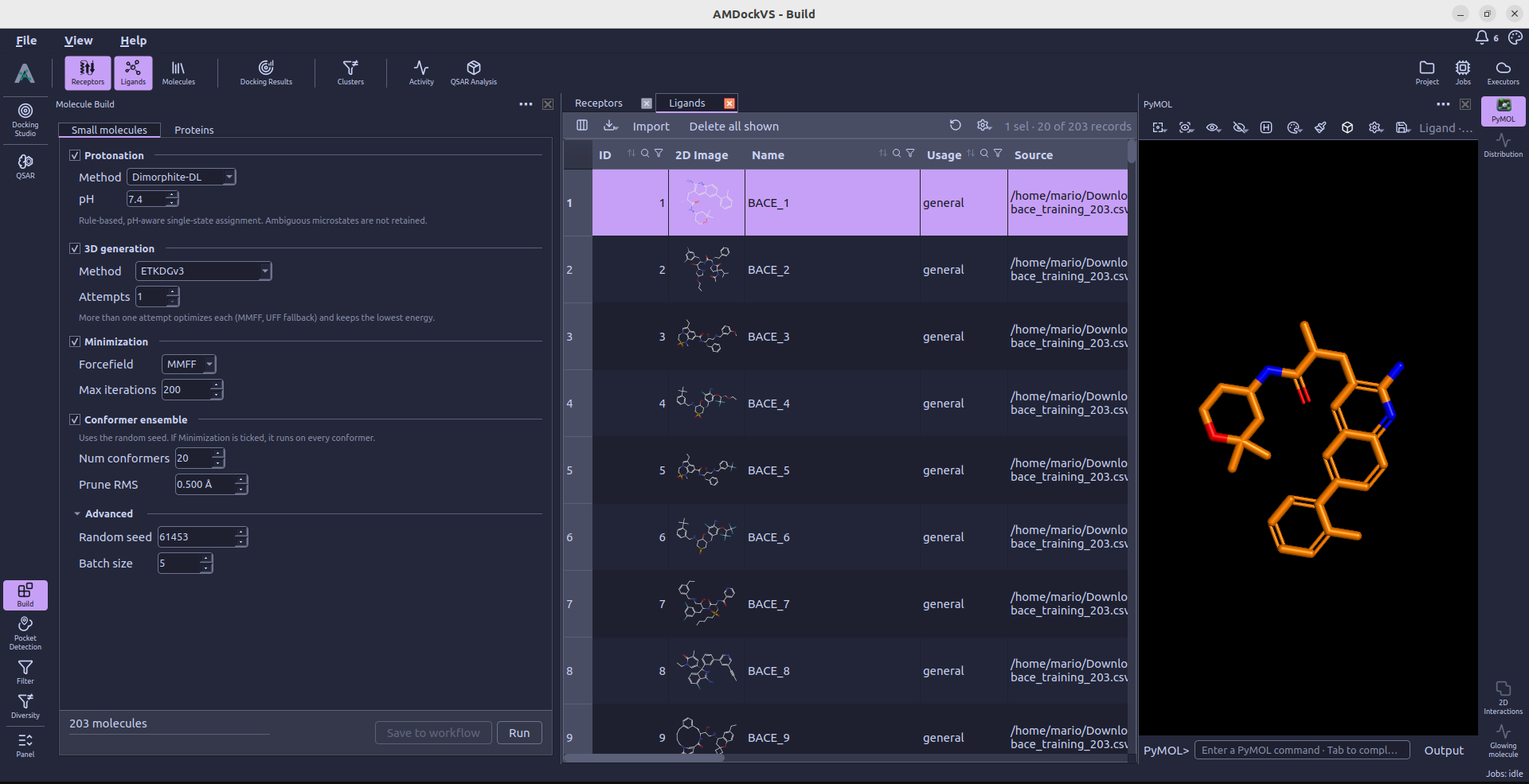
Protonation
Choose a method and, for methods that predict protonation states, a pH:
- Dimorphite-DL assigns a single pH-dependent state using protonation rules.
- OpenBabel performs pH-dependent protonation through its command-line tool.
- pKasso selects the most probable state at the chosen pH. Choose MolGpKa (fast) or MolGpKa + Uni-pKa (precise), set the thread count, and optionally request a GPU for the mixed model.
- Explicit Hs (RDKit) adds hydrogens while preserving the current charge states. The pH control is disabled for this method.
These operations retain one state per molecule rather than adding separate records for alternative protonation microstates. OpenBabel and pKasso report their runtime availability in the panel; install missing runtimes through Settings → External tools.
3D generation
Choose ETKDGv3 or srETKDGv3 (small rings) and set Attempts. Missing hydrogens are added during embedding. With multiple attempts, each candidate is optimized using MMFF, with UFF as a fallback, and the lowest-energy candidate is retained.
Conformer ensemble
Set Num conformers and Prune RMS to generate an ensemble and remove similar conformers. This step uses the random seed from Advanced. If Minimization is also enabled, it applies to every conformer, with another pruning pass after optimization.
Minimization
Choose MMFF or UFF and set Max iterations. Enable this section when you want geometry optimization as part of the build, including optimization of a conformer ensemble.
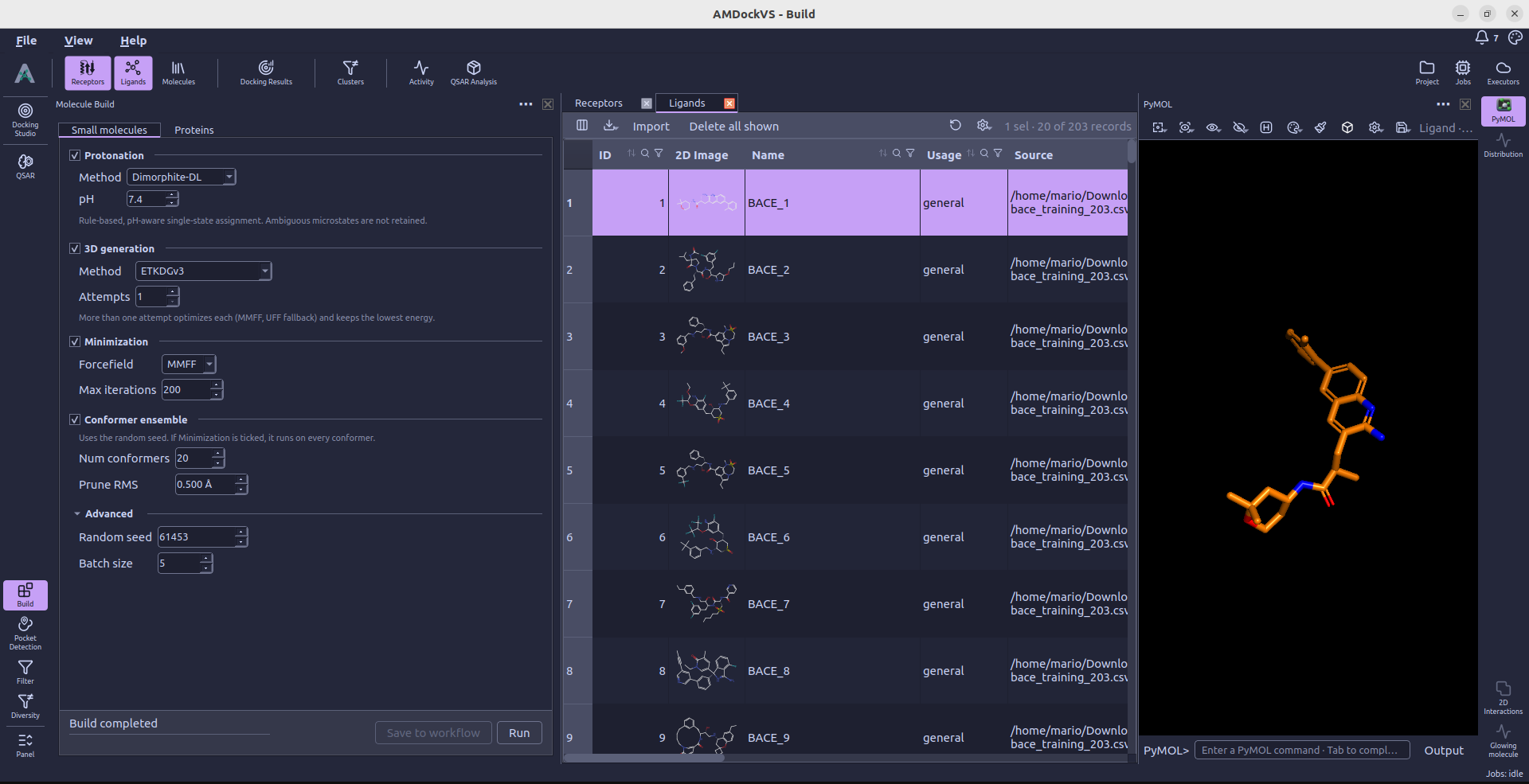
3. Prepare proteins
In the Proteins tab, enable the operations needed for the structures in scope. The run performs them in the following order.
3D generation
In the receptors tab, users can import one or more sequences in fasta format using the Add sequence button or import from Uniprot using Download.
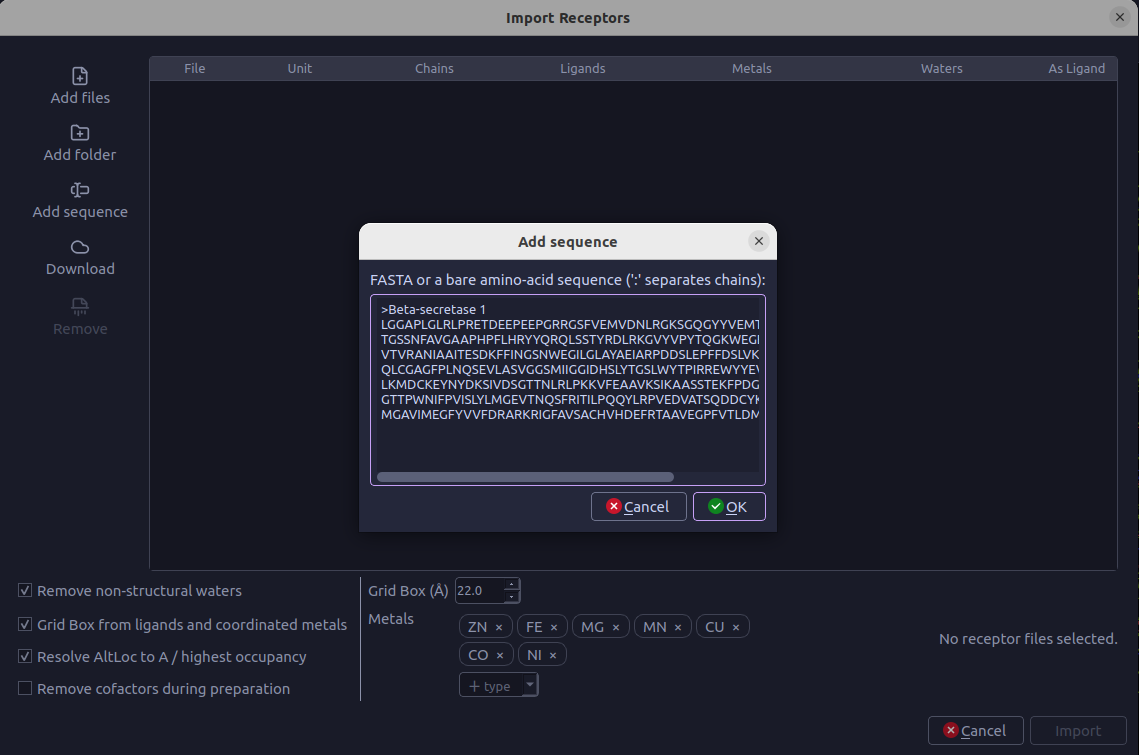
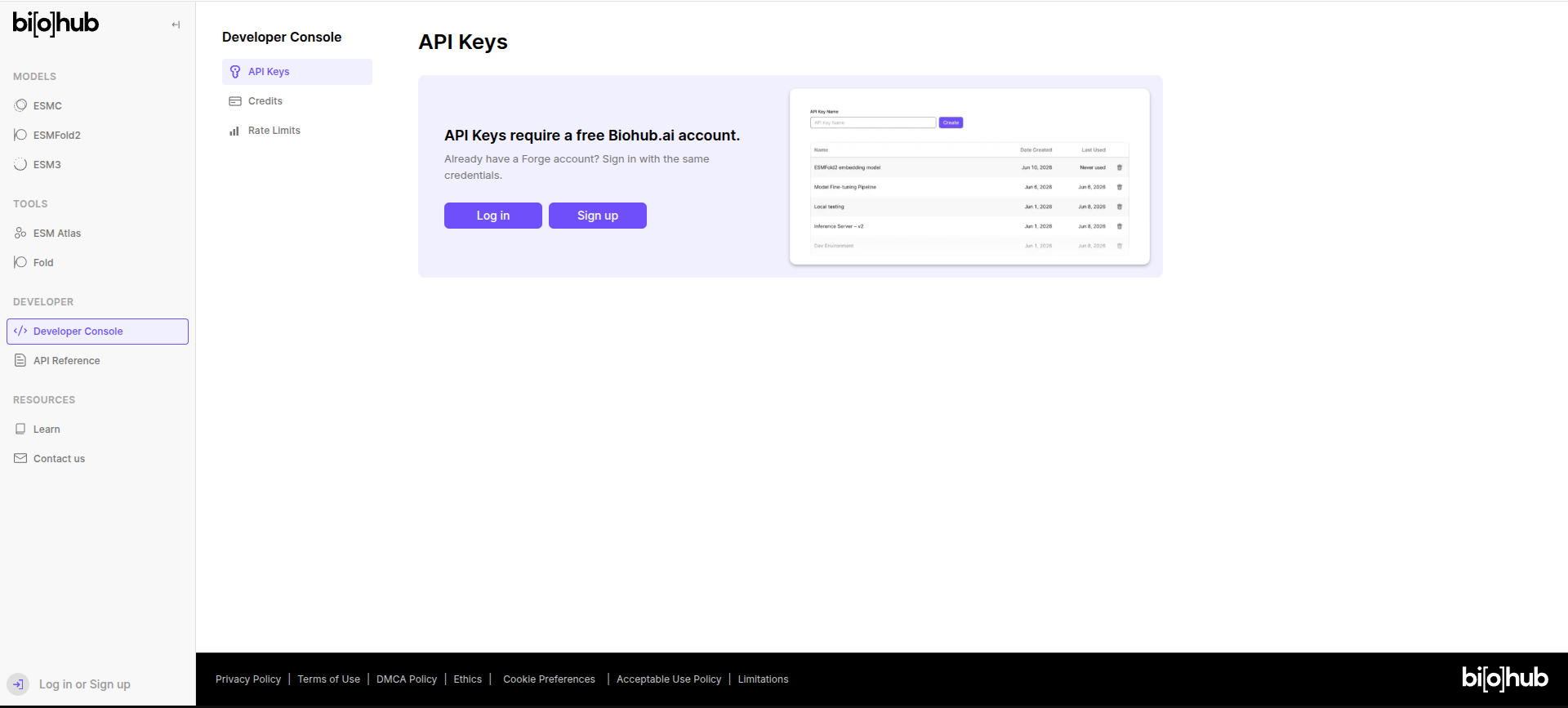
Users can then predict a structure from its sequence using ESMFold2 fast or ESMFold2 models. The ESMFold2 fast option is a faster, lower-accuracy version of the full ESMFold2 model. The ESMFold2 option uses the full model for higher accuracy predictions. This optional step uses an external service and requires an API token, entered through API token.... Enable Force: predict again proteins that already have 3D to replace an existing model with a new prediction. Below are the steps to obtain an API token from Biohub.ai:
-
Open Biohub Developer Console and choose Sign up to create a free account or Log in if you already have one.
-
After signing in, enter a descriptive API Key Name, such as
AMDockVS, and select Create. Copy the generated API token.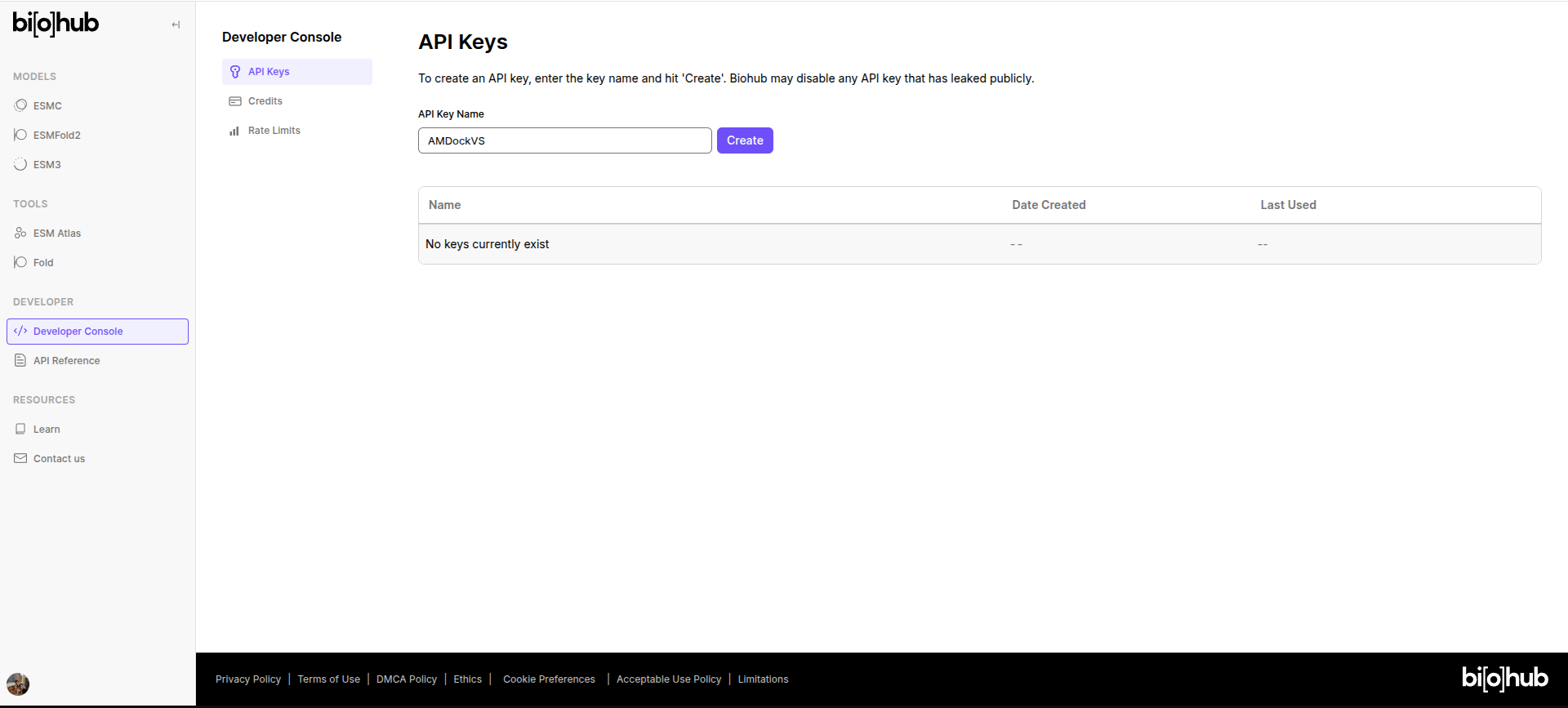
-
In AMDockVS, open Build → Proteins → 3D generation → API token..., paste the token, and select OK. Leave Remember unchecked to use it only for the current session. Enable Remember to save it in your shell profile (or user environment on Windows) for future sessions.
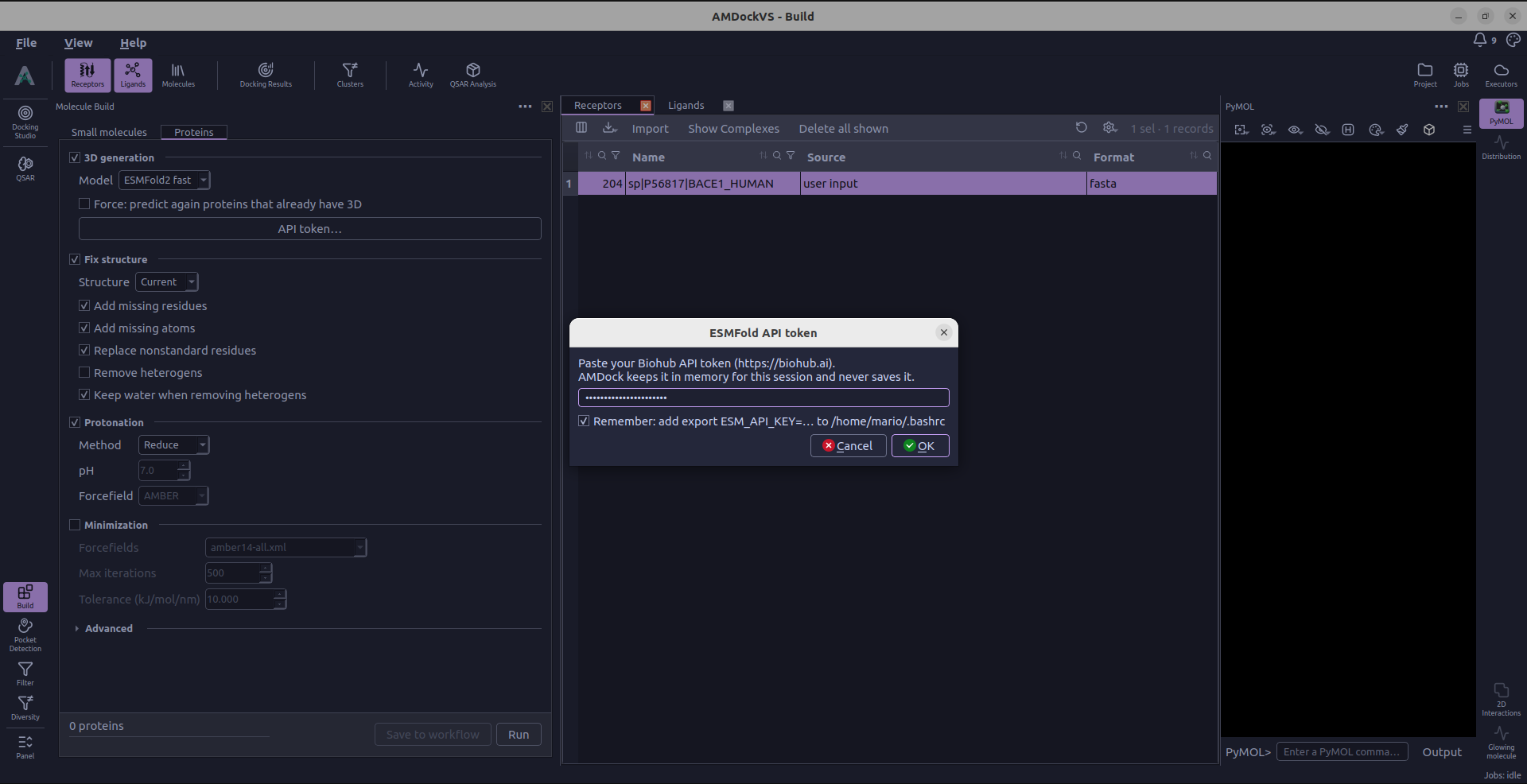
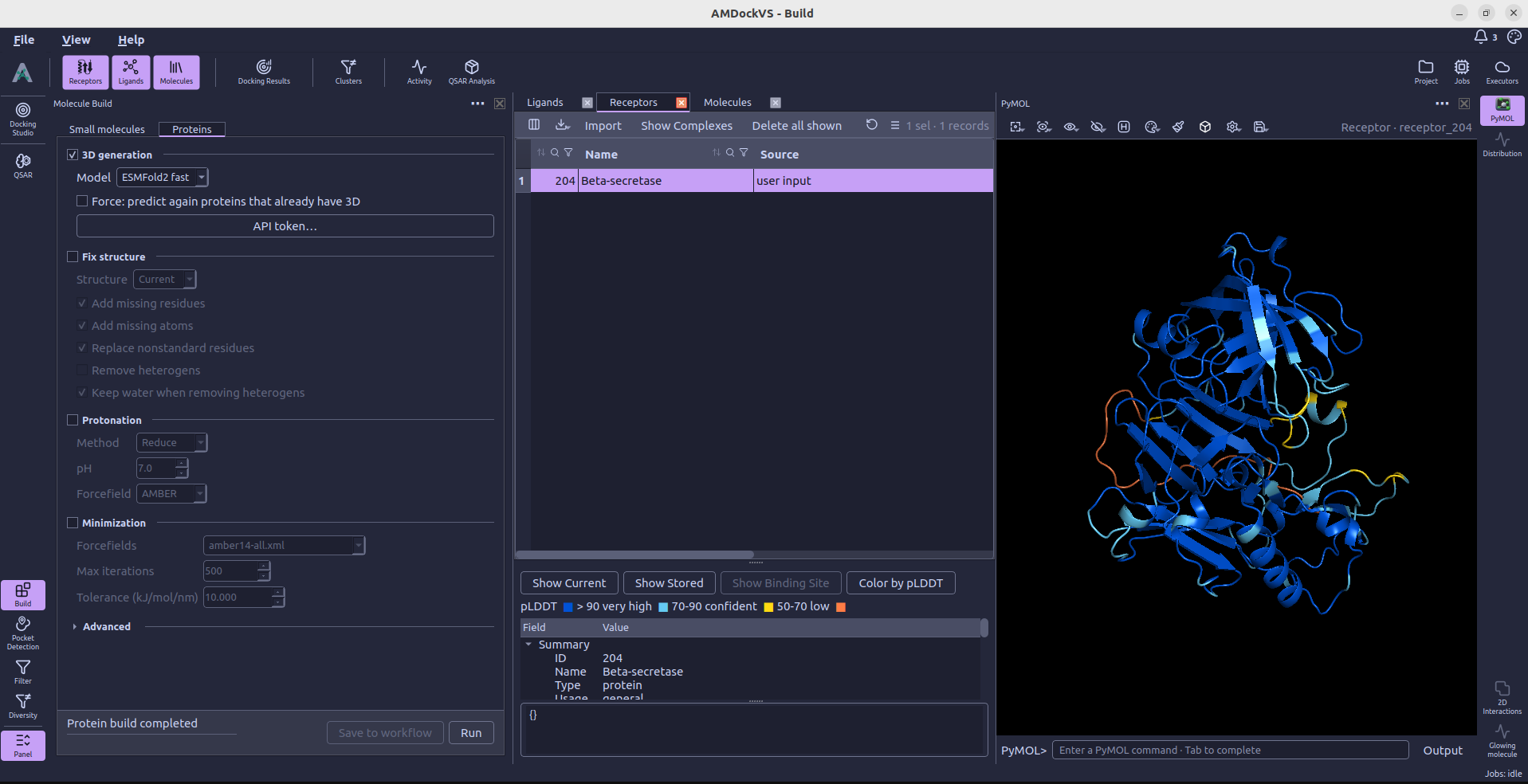
Having a valid API token, we can now predict the 3D structure of a protein from its sequence. Select ESMFold2 fast or ESMFold2 and click Run to start the prediction. The predicted structure will be added to the Molecules table once the process is complete.
Fix structure
Choose Current to work from the latest successful structure or Original to start from the imported structure. The repair options can add missing residues and atoms, replace nonstandard residues, and remove heterogens. Keep water when removing heterogens controls whether waters survive that removal. Structure repair requires PDBFixer and OpenMM. Use Open External tools… to install them from Settings → External tools → Protein preparation. Installing PDBFixer also installs OpenMM. Build detects the installed packages without restarting the application.
Protonation
Choose Reduce or PDB2PQR. The pH and Forcefield controls apply
to PDB2PQR, with AMBER, CHARMM, and PARSE available as forcefields.
Install the selected tool with Open External tools…, or from Settings →
External tools → Protein preparation. Reduce and PDB2PQR use separate managed
environments; Build detects them after installation without an application restart.
AMDockVS requires Reduce 4.15 or PDB2PQR 3.7.1 for the respective method
and does not automatically use copies found on the system PATH.
PDB2PQR uses PROPKA to apply the selected pH. Reduce optimizes hydrogen placement
without a pH control.
Minimization
Protein minimization uses OpenMM, available from Settings → External tools → Protein preparation or the section's Open External tools… button. Choose the forcefield files, then set Max iterations and Tolerance (kJ/mol/nm). This operation is optional and is off by default.
4. Run and review
Under Advanced, set the batch size and, when multiple destinations are available, Run on. Small-molecule builds also expose a Random seed. Select Run to submit the enabled operations and follow their progress in the action bar or Jobs monitor. Save to workflow records the configured operations for reuse.
After completion, select a molecule in the central table to inspect its current structure in PyMOL. Review any reported build failures before continuing to Docking Studio.